2.8. Air Quality Modeling (UFS-AQM)
Attention
AQM capabilities are an unsupported feature of the SRW App. This means that it is available for users to experiment with, but assistance for AQM-related issues is limited.
The standard SRW App distribution uses the uncoupled version of the UFS Weather Model (atmosphere-only). However, users have the option to use a coupled version of the SRW App that includes the standard distribution (atmospheric model) plus the Air Quality Model (AQM).
The AQM is a UFS Application that dynamically couples the Community Multiscale Air Quality (CMAQ) model with the UFS Weather Model (WM) through the NUOPC Layer to simulate temporal and spatial variations of atmospheric compositions (e.g., ozone and aerosol compositions). The CMAQ model, treated as a column chemistry model, updates concentrations of chemical species (e.g., ozone and aerosol compositions) at each integration time step. The transport terms (e.g., advection and diffusion) of all chemical species are handled by the UFS WM as tracers.
Note
Although this chapter is the primary documentation resource for running the AQM configuration, users may need to refer to Chapter 2.3 and Chapter 2.4 for additional information on building and running the SRW App, respectively.
2.8.1. Quick Start Guide (UFS-AQM)
Attention
These instructions should work smoothly on Ursa, Hercules, Orion, Derecho, and Gaea-C6 but users on other systems may need to make additional adjustments.
2.8.1.1. Download the Code
Clone the develop branch of the authoritative SRW App repository:
git clone -b develop https://github.com/ufs-community/ufs-srweather-app.git
2.8.1.2. Checkout Externals
Users must run the checkout_externals script to collect (or “check out”) the individual components of the SRW App (AQM version) from their respective GitHub repositories.
cd /path/to/ufs-srweather-app/
./manage_externals/checkout_externals
2.8.1.3. Build the SRW App with AQM
Users can build the SRW App AQM binaries with the following command:
./devbuild.sh -p=<machine> -a=ATMAQ
where <machine> is ursa, hercules, orion, derecho, and gaeac6. The -a argument indicates the configuration/version of the application to build.
Building the SRW App with AQM on other machines, including other Level 1 platforms, is not currently guaranteed to work, and users may have to make adjustments to the modulefiles for their system.
If the SRW-AQM builds correctly, users should see the standard executables listed in Table 2.3. Additionally, users should see the AQM-specific executables described in Table 2.21 in the ufs-srweather-app/exec directory.
Executable |
Description |
|---|---|
decomp-ptemis-mpi |
Splits the point-source emission file into subdomain based on runtime configure setting |
gefs2lbc_para |
Interpolates GOCART concentration to be lateral boundary condition for regional air quality model and outputs a layer result for checking purpose |
nexus |
Runs the NOAA Emission and eXchange Unified System (NEXUS) emissions processing system |
2.8.1.4. Load the srw_app Environment
Load the python environment for the workflow:
# On all systems:
module use /path/to/ufs-srweather-app/modulefiles
module load wflow_<machine>
where <machine> is ursa, hercules, orion, derecho, or gaeac6. The workflow should load on other platforms listed under the MACHINE variable in Section 3.1.1, but users may need to adjust other elements of the process when running on those platforms.
Note
A limited number of diagnostic fields are output on derecho due to runtime CMAQ issues.
If the console outputs a message, the user should run the commands specified in the message. For example, if the output says:
Please do the following to activate conda:
    > conda activate srw_app
then the user should run conda activate srw_app. Otherwise, the user can continue with configuring the workflow.
2.8.1.5. Configure and Experiment
Users will need to configure their experiment by setting parameters in the config.yaml file. To start, users can copy a default experiment setting into config.yaml:
cd ush
cp config.aqm.yaml config.yaml
Users will need to change the MACHINE and ACCOUNT variables in config.yaml to match their system. They may also wish to adjust other experiment settings. For more information on each task and variable, see Section 3.1.
The community AQM configuration assumes that users have HPSS access and attempts to download the data from HPSS. However, if users have the data on their system already, they may prefer to add the following lines to task_get_extrn_*: in their config.yaml file, adjusting the file path to point to the correct data locations:
Attention
HPSS is not available on gaeac6. User-staged data must be used.
task_get_extrn_ics:
   USE_USER_STAGED_EXTRN_FILES: true
   EXTRN_MDL_SOURCE_BASEDIR_ICS: /path/to/data
task_get_extrn_lbcs:
   USE_USER_STAGED_EXTRN_FILES: true
   EXTRN_MDL_SOURCE_BASEDIR_LBCS: /path/to/data
On Level 1 systems, users can find ICs/LBCs in the usual input data locations under FV3GFS/netcdf/2023111000 and FV3GFS/netcdf/2023111000. Users can also download the data required for the community experiment from the UFS SRW App Data Bucket.
Users may also wish to change cron-related parameters in config.yaml. In the config.aqm.yaml file, which was copied into config.yaml, cron is used for automatic submission and resubmission of the workflow:
workflow:
  USE_CRON_TO_RELAUNCH: true
  CRON_RELAUNCH_INTVL_MNTS: 3
This means that cron will submit the launch script every 3 minutes. Users may choose not to submit using cron or to submit at a different frequency. Note that users should create a crontab by running crontab -e the first time they use cron.
When using the basic config.aqm.yaml experiment, the AQM pre-processing tasks are automatically turned on because "parm/wflow/aqm_prep.yaml" appears in the list of workflow files in the rocoto: tasks: taskgroups: section of config.yaml (see Section 2.22 for task descriptions). To turn on AQM post-processing tasks in the workflow, include "parm/wflow/aqm_post.yaml" in the rocoto: tasks: taskgroups: section, too (see Section 2.23 for task descriptions).
Attention
The module required to run the post-processing tasks is available only on WCOSS2. Therefore, aqm_post.yaml should not be added to the rocoto: tasks: taskgroups: section of config.yaml on any other platforms.
2.8.1.6. Generate the Workflow
Generate the workflow:
./generate_FV3LAM_wflow.py
2.8.1.7. Run the Workflow
If USE_CRON_TO_RELAUNCH is set to true in config.yaml (see Section 2.8.1.5), the workflow will run automatically. If it was set to false, users must submit the workflow manually from the experiment directory:
cd ${EXPT_BASEDIR}/${EXPT_SUBDIR}
./launch_FV3LAM_wflow.sh
Repeat the launch command regularly until a SUCCESS or FAILURE message appears on the terminal window. See Section 3.1.3.2 for more on the ${EXPT_BASEDIR} and ${EXPT_SUBDIR} variables.
Users may check experiment status from the experiment directory with either of the following commands:
# Check the experiment status (for cron jobs)
rocotostat -w FV3LAM_wflow.xml -d FV3LAM_wflow.db -v 10

# Check the experiment status and relaunch the workflow (for manual jobs)
./launch_FV3LAM_wflow.sh; tail -n 40 log.launch_FV3LAM_wflow
To see a description of each of the AQM workflow tasks, see Section 2.8.2.
2.8.1.8. Experiment Output
The workflow run is complete when all tasks display a “SUCCEEDED” message. If everything goes smoothly, users will eventually see a workflow status table similar to the following:
      CYCLE                   TASK       JOBID       STATE   EXIT STATUS   TRIES   DURATION
============================================================================================
202302170000              make_grid    47411619   SUCCEEDED             0       1       36.0
202302170000              make_orog    47411728   SUCCEEDED             0       1      151.0
202302170000         make_sfc_climo    47411801   SUCCEEDED             0       1       58.0
202302170000          nexus_gfs_sfc    47411620   SUCCEEDED             0       1       37.0
202302170000      nexus_emission_00    47411729   SUCCEEDED             0       1      251.0
202302170000      nexus_emission_01    47411730   SUCCEEDED             0       1      250.0
202302170000      nexus_emission_02    47411731   SUCCEEDED             0       1      250.0
202302170000       nexus_post_split    47412034   SUCCEEDED             0       1       44.0
202302170000          fire_emission    47411621   SUCCEEDED             0       1       19.0
202302170000           point_source    47411732   SUCCEEDED             0       1       82.0
202302170000               aqm_lbcs    47412961   SUCCEEDED             0       1      159.0
202302170000          get_extrn_ics    47411622   SUCCEEDED             0       1      314.0
202302170000         get_extrn_lbcs    47411623   SUCCEEDED             0       1        0.0
202302170000        make_ics_mem000    47659593   SUCCEEDED             0       1      126.0
202302170000       make_lbcs_mem000    47659594   SUCCEEDED             0       1      113.0
202302170000        run_fcst_mem000    47659742   SUCCEEDED             0       1      763.0
202302170000   run_post_mem000_f000    47659910   SUCCEEDED             0       1       30.0
202302170000   run_post_mem000_f001    47660029   SUCCEEDED             0       1       30.0
202302170000   run_post_mem000_f002    47660030   SUCCEEDED             0       1       31.0
...
202302170000   run_post_mem000_f006    47660110   SUCCEEDED             0       1       29.0
============================================================================================
202302170600          nexus_gfs_sfc    47659421   SUCCEEDED             0       1       44.0
202302170600      nexus_emission_00    47659475   SUCCEEDED             0       1      323.0
202302170600      nexus_emission_01    47659476   SUCCEEDED             0       1      323.0
202302170600      nexus_emission_02    47659477   SUCCEEDED             0       1      329.0
202302170600       nexus_post_split    47659595   SUCCEEDED             0       1       60.0
202302170600          fire_emission    47659422   SUCCEEDED             0       1       18.0
202302170600           point_source    47659478   SUCCEEDED             0       1      128.0
202302170600                aqm_ics    47659597   SUCCEEDED             0       1      159.0
202302170600               aqm_lbcs    47659598   SUCCEEDED             0       1      158.0
202302170600          get_extrn_ics    47659423   SUCCEEDED             0       1      493.0
202302170600         get_extrn_lbcs    47659424   SUCCEEDED             0       1      536.0
202302170600        make_ics_mem000    47659594   SUCCEEDED             0       1      134.0
202302170600       make_lbcs_mem000    47659596   SUCCEEDED             0       1      112.0
202302170600        run_fcst_mem000    47659812   SUCCEEDED             0       1     1429.0
202302170600   run_post_mem000_f000    47659998   SUCCEEDED             0       1       30.0
202302170600   run_post_mem000_f001    47660042   SUCCEEDED             0       1       31.0
202302170600   run_post_mem000_f002    47660043   SUCCEEDED             0       1       29.0
...
202302170600   run_post_mem000_f012    47660134   SUCCEEDED             0       1       30.0
2.8.2. Additional Tasks for AQM
2.8.2.1. Structure of SRW-AQM Workflow
Figure 2.31 illustrates the full non-DA SRW-AQM workflow using a flowchart. Compared to the uncoupled (atmosphere-only) workflow (see Table 2.10), SRW-AQM has additional tasks for pre- and post-processing. For pre-processing, multiple emissions data such as NEXUS, fire, and point-source emissions are retrieved or created for air quality modeling. Moreover, the chemical initial conditions (ICs) are extracted from the restart files of the previous cycle and added to the existing IC files. The chemical lateral boundary conditions (LBCs) and the GEFS aerosol data are also added to the existing LBC files. For post-processing, air quality forecast products for ozone (O3) and 2.5-micron particulate matter (PM2.5) are generated, and the bias-correction technique is applied to improve the accuracy of the results.
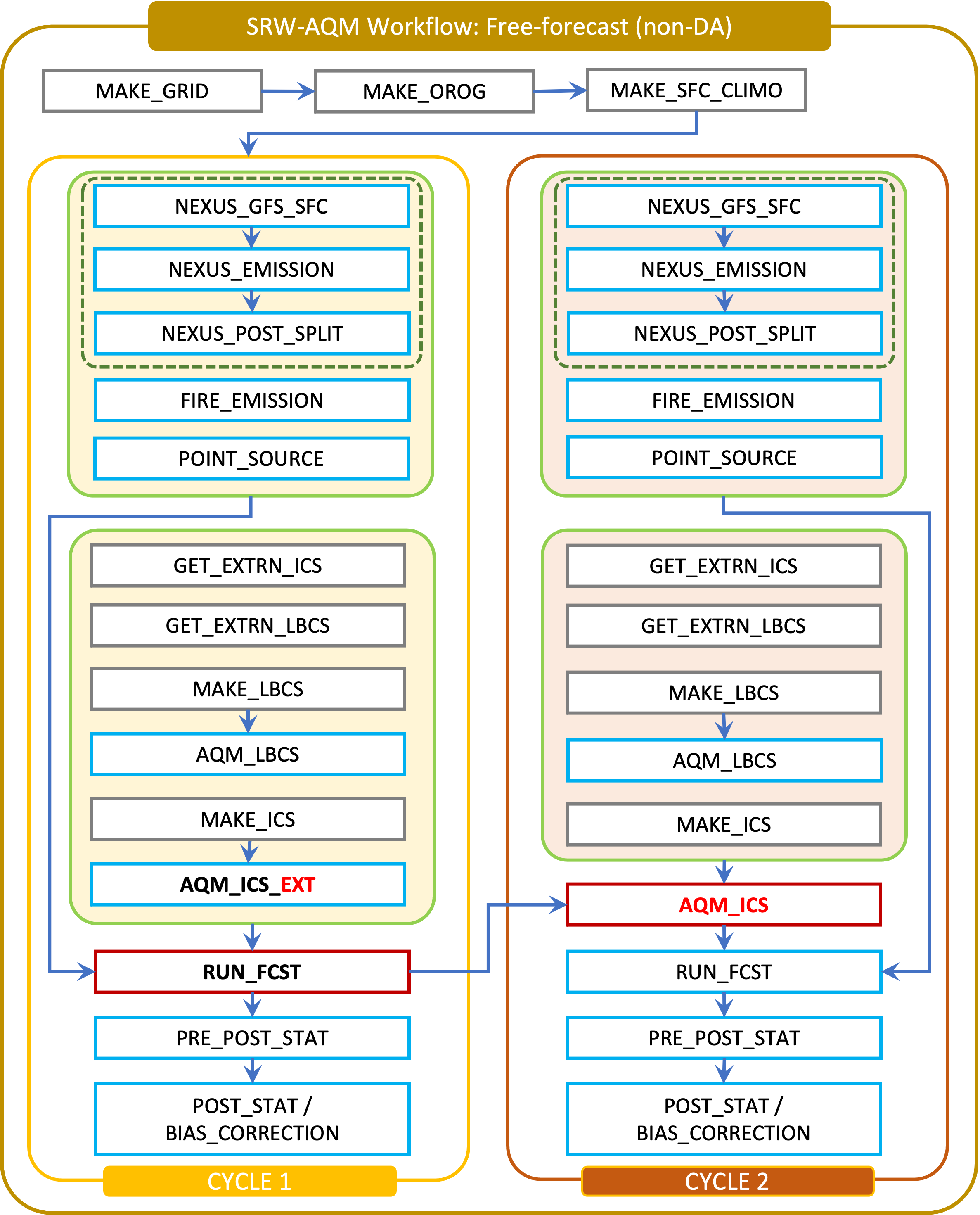
Fig. 2.31 Workflow Structure of SRW-AQM (non-DA)
2.8.2.2. Pre-processing Tasks of SRW-AQM
The pre-processing tasks for air quality modeling (AQM) are shown in Table 2.22. They are defined in the parm/wflow/aqm_prep.yaml file.
Task Name |
Description |
|---|---|
nexus_gfs_sfc |
Retrieves the GFS surface files from the previous cycle in near real-time (NRT) or from the current cycle in retrospective cases. The surface radiation, soil moisture, and temperature fields are needed to predict the MEGAN biogenics emissions within the |
nexus_emission_## |
Prepares the run directory with gridded emissions inputs, runs the NOAA Emission and eXchange Unified System (NEXUS) to create model-ready emissions for the given simulation day, and post processes NEXUS output to make it more readable. The task will also split the task into |
nexus_post_split |
Concatenates the NEXUS emissions information into a single netCDF file (needed for the forecast) if NEXUS was split into multiple jobs using the |
fire_emission |
Converts both satellite-retrieved gas and aerosol species emissions (RAVE) from mass (kg) to emissions rates (kg/m2/s) and creates 3-day hourly model-ready fire emissions input files. |
point_source |
Aggregates the anthropogenic point source sectors of the National Emission Inventory (NEI) into a ready-to-input point-source emission file based on the weekday/weekend/holiday patterns of each sector and the date/time of the simulation. |
aqm_ics |
Creates a chemical initial conditions file by using the previous cycle restart files. |
aqm_lbcs |
Adds the chemical lateral boundary conditions (LBCs) to the meteorological LBCs to form the full set of ready-to-input LBCs for the simulation. This task includes two sub-tasks: (1) addition of the gaseous species LBCs and (2) addition of dynamic aerosol LBCs. The former adds static gaseous LBCs using monthly mean global data. The latter is the parallel job, which extracts the GEFS-Aerosol Model’s output along the regional domain and performs the species conversion from GOCART aerosols to CMAQ aerosols. |
2.8.2.3. Post-processing Tasks of SRW-AQM
The post-processing tasks for air quality modeling (AQM) are shown in Table 2.23. They are defined in the parm/wflow/aqm_post.yaml file. Since the module required to run these tasks is available only on WCOSS2, aqm_post.yaml should not be added to the rocoto: tasks: taskgroups: section of the configuration file config.yaml on other platforms.
Task name |
Description |
|---|---|
pre_post_stat |
Creates surface (i.e., model first level) meteorological and chemical files to support air quality product generation and generate training data to support bias correction tasks. |
post_stat_o3 |
Generates air quality forecast products, including hourly average and statistical products, for O3 (e.g., daily 8-hour average maximum O3). |
post_stat_pm25 |
This task generates air quality forecast products, including hourly average and statistical products, for PM2.5 (e.g., 24-hour average PM2.5). |
bias_correction_o3 |
Applies a bias-correction technique (e.g., analog ensemble) to improve the raw model forecast for O3 and generates the bias-corrected O3 products. |
bias_correction_pm25 |
Applies a bias-correction technique (e.g., analog ensemble) to improve the raw model forecast for PM2.5 and generates the bias-corrected PM2.5 products. |
2.8.3. WE2E Test for AQM
Build the app for AQM:
./devbuild.sh -p=ursa -a=ATMAQ
Add the WE2E test for AQM to the list file:
cd /path/to/ufs-srweather-app/tests/WE2E
echo "custom_ESGgrid" > my_tests.txt
echo "aqm_grid_AQM_NA13km_suite_GFS_v16" >> my_tests.txt
Run the WE2E test:
$ ./run_we2e_tests.py -t my_tests.txt -m ursa -a gsd-fv3 -q
2.8.4. AQM Use Cases
An AQM “use case” is a scientifically interesting air quality event with preconfigured SRW workflow templates. ICs, LBCs, and fixed files are also staged in the SRW App Data Bucket, and can be downloaded using the AQM-Eval Data Sync utility. If data is downloaded using this utility, setting cpl_aqm_parm.USE_AQM_S3_DATA_STAGE = true and AQM_STAGE_DST_DIR = <stage_directory> will populate the root paths for data dependencies.
Name |
Key |
Configuration Template |
|---|---|---|
Atmospheric Emissions and Reactions Observed from Megacities to Marine Areas |
|
|
Fall Ozone |
FALL_OZONE |
|
2.8.4.1. Acquiring Use Case Data
AQM data requirements are relatively large. Using the AEROMMA campaign as an example, expect a minimum of ~28 terabytes of storage for the full use case, with ~3 terabytes allocated to fixed files. Hence, use case configurations assume a user will want to evaluate a 48-hour forecast before extending to the recommended use case forecast window. In this situation, download the time-varying data using the data sync utility’s --snippet flag.
$ DST_DIR=<path to root directory for sync>
$ conda run -n aqm-eval --no-capture-output aqm-data-sync time-varying --dst-dir ${DST_DIR} --use-case AEROMMA --snippet
After testing a 48-hour forecast, remove the --snippet flag to download the full time-varying dataset, or provide a custom end date via the --last-cycle-date flag.
If you are not on a Tier 1 platform and have not acquired the SRW fixed file data, also download the SRW fixed data using:
$ # Use the same destination directory as the time-varying data download.
$ DST_DIR=<path to root directory for sync>
$ conda run -n aqm-eval --no-capture-output aqm-data-sync srw-fixed --dst-dir ${DST_DIR}
Now, setting cpl_aqm_parm.USE_FIX_AQM_S3_DATA_STAGE= true will adjust fixed files paths to point to the AQM_STAGE_DST_DIR.
Tip
The sync utility is resumable. Re-use the destination directory if a sync operation is canceled, interrupted, or additional temporal data is needed. Synchronization is a one-way sync from the S3 source.
2.8.4.2. Running a Use Case
Once data is appropriately staged, the use case workflow configuration file may be used like any other SRW workflow configuration file. The preconfigured template assumes users have downloaded data using the data synchronization utility. If not, the user should move any use case-specific settings to the default AQM configuration file (e.g., cycle dates). Assuming the data stage is done correctly for the use case, users should generally focus on updating these configuration variables:
Configuration Variable |
Description |
|---|---|
|
Platform running the workflow. |
|
Account holding the core hours. |
|
Required path to the destination (root) directory of the data synchronization operation. |
|
Defaults to two 24-hour forecast cycles. |
|
Defaults to false. Set to true if fixed data was downloaded to the stage directory. |
2.8.5. MELODIES MONET (MM) Evaluation
SRW-AQM provides an optional task group leveraging MELODIES MONET (documentation) for model evaluation.
MELODIES MONET is a joint project between NSF NCAR and NOAA to develop a modular framework that integrates existing and future diverse atmospheric chemistry observational datasets with chemistry model results for the evaluation of air quality and atmospheric composition.
—MELODIES MONET Documentation
2.8.5.1. How to Run the MM Evaluation
Note
The AQS PM and AQS VOCs evaluations do not run on Derecho. Set the packages’ active flag to false (i.e., melodies_monet_parm.aqm.packages.aqs_pm.active: false) when using Derecho.
To run the evaluation suite, a user will need to follow the steps described in the [aqm-mm-eval](https://github.com/NOAA-EPIC/AQM-Eval/wiki/aqm%E2%80%90mm%E2%80%90eval) wiki. An example MM evaluation configuration tuned to the AEROMMA use case is provided at ush/aqm-use-cases/config.aqm.AEROMMA.yaml. High-level steps required to run an evaluation using the AEROMMA use case data:
Download observational data using
aqm-data-sync: https://github.com/NOAA-EPIC/AQM-Eval/wiki/aqm%E2%80%90mm%E2%80%90eval#stage-observational-dataConfigure observational datasets: https://github.com/NOAA-EPIC/AQM-Eval/wiki/aqm%E2%80%90mm%E2%80%90eval#observational-datasets
Activate the evaluation task group by setting
melodies_monet_parm.aqm.active: trueand uncommentingworkflow.taskgroups[parm/wflow/aqm_post_melodies_monet.yaml].